Choose where music continues
Set a continuation point after a hook, verse, or bridge. The AI music extender builds the next section from that moment.
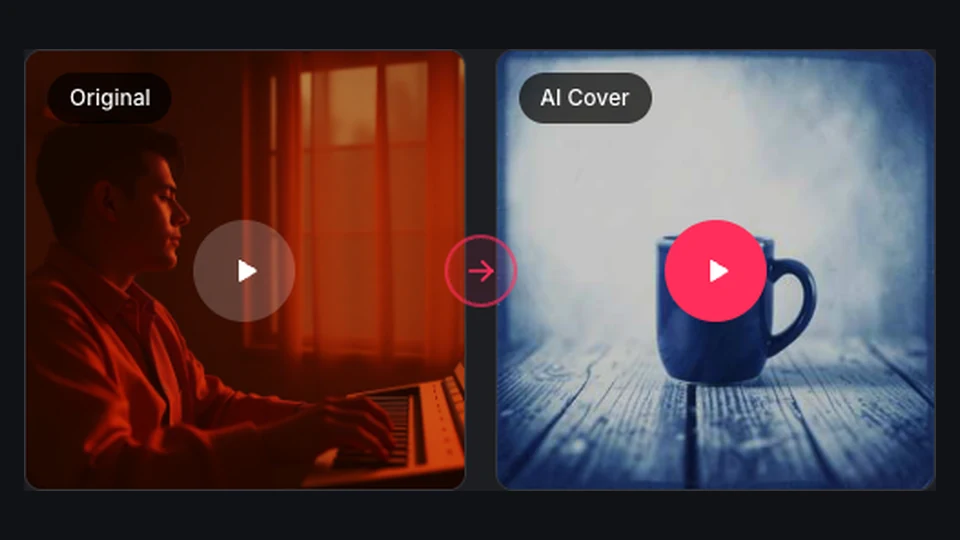
Choose a song from your Library and create a new verse, bridge, or outro with BeatMuse.
Choose a starting point, guide the next section, and compare new versions. Your original song stays available.
Set a continuation point after a hook, verse, or bridge. The AI music extender builds the next section from that moment.
Choose an eligible BeatMuse-generated song from your Library. Preview its audio before deciding what the AI song extender should create next.

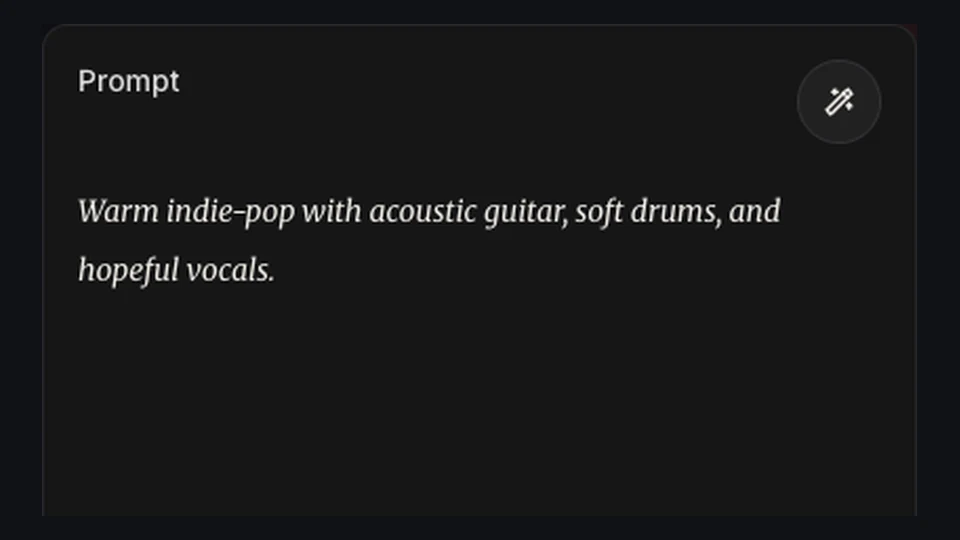
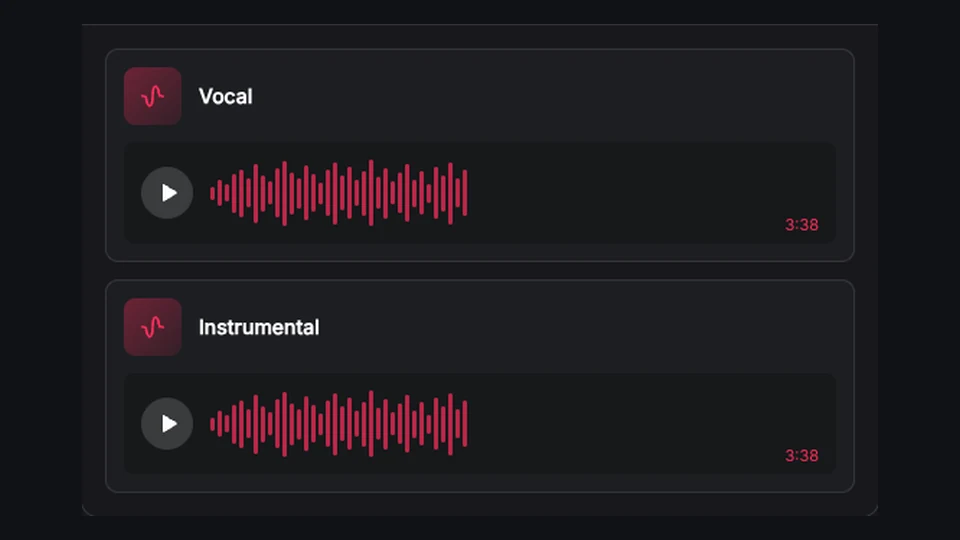
Describe the next section in Simple mode, or set its title, style, and vocal prompt in Custom. Choose Instrumental for music without singing.
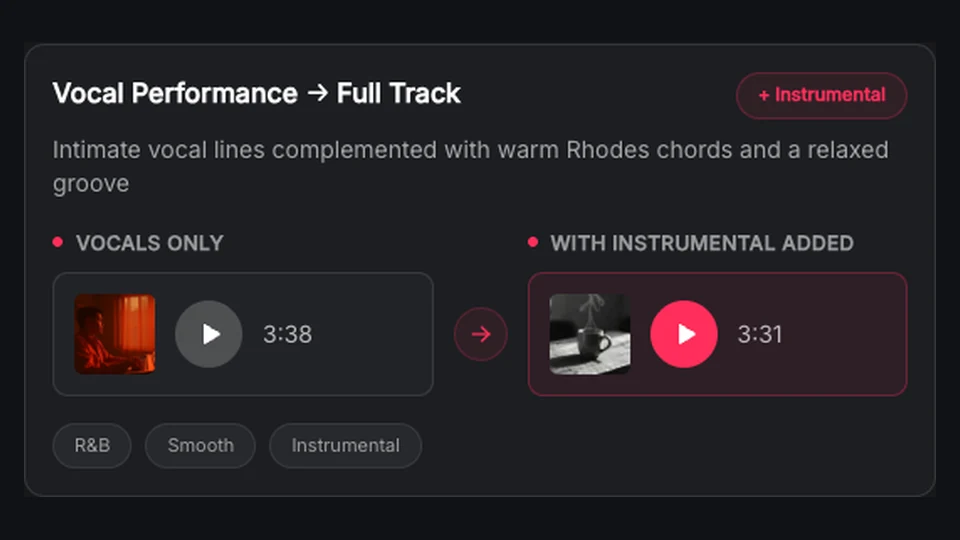
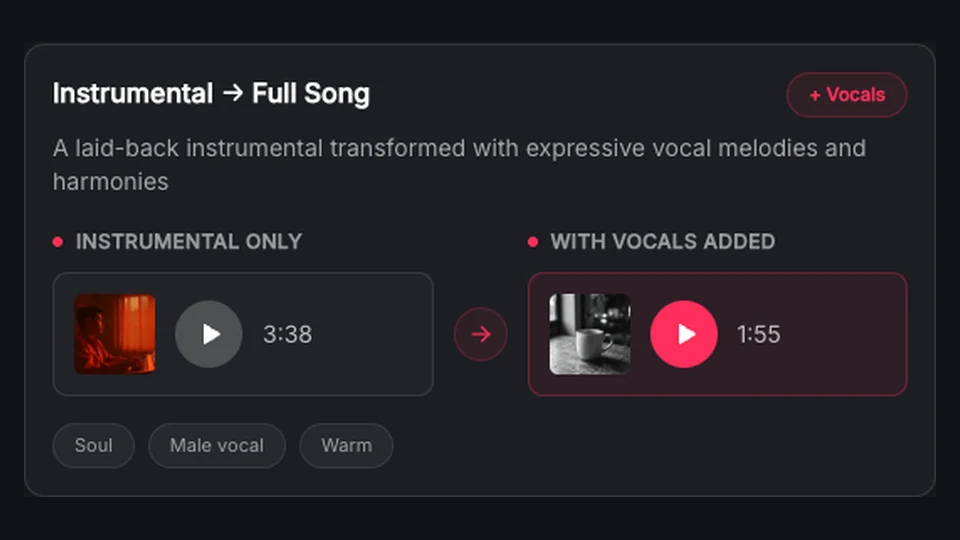
Each finished continuation becomes a separate track. Compare your alternatives while keeping the original available for another direction.
Develop a BeatMuse-generated demo with the AI song extender. Describe the verse in Custom mode, include new lyrics, and audition the phrasing before revising your song.
Try music extension
Use the AI music extender to develop a quieter passage or gradual build from your existing cue. Audition it against the scene, then trim the timing in your editor.
Try music extension
Extend music from your podcast intro into a lighter instrumental passage. Ask for fewer melodic layers or softer percussion, then compare how each version sits beneath the voices.
Try music extension
Guide your BeatMuse-generated theme toward a new mood, instrument palette, or energy level. The AI music extender creates passages to audition in your game audio workflow.
Try music extension
Try an instrumental release, a softer finish, or a contrasting final section. Keep the same source and starting point to compare endings without replacing your original.
Try music extensionSign in and select an eligible BeatMuse-generated song from your Library. Preview the source before you extend music.
Choose where the music extension begins. The timestamp must be after zero and before the source track ends.
Give a direction in Simple mode, or add a title, style, and vocal prompt in Custom. Choose Instrumental for a section without singing.
Review the credit cost, generate with the AI song extender, and listen to the separately saved tracks. Keep the version that fits.

Select your BeatMuse song and create a new verse, bridge, or outro. Listen, compare, and keep your preferred version.
Extend music free